4 min readClaude CodeAI CodingDeveloper Tips
How to Use Claude Code: 10 Pro Tips for Faster Coding
Written by Nethma DissanayakeOnline Store Builder4 min read
Ten practical Claude Code habits: project memory with CLAUDE.md, scoped prompts, plan mode, context control, verification loops and safer permissions.

Claude Code is Anthropic's agentic coding tool. It runs in your terminal, reads your project, edits files, runs commands, and works through multi-step tasks with you. Many developers use it for a few prompts and then stop, which leaves most of its value unused. These ten tips will help you get more out of it.
1. Give Claude Code a project memory with CLAUDE.md
Claude Code reads a file named CLAUDE.md at the root of your project at the start of each session. Use it to record the things you would otherwise repeat in every prompt:
- How to install dependencies, run the dev server, and run tests
- Your folder structure and where key logic lives
- Coding conventions, such as naming rules or preferred libraries
- Things Claude should never do, such as editing generated files or committing to
main
Keep it short and specific. A focused file of about 50 lines works better than a long document that buries the important rules.
2. Start with a clear, scoped goal
Vague requests produce vague results. Compare these two prompts:
- Weak: "Improve the checkout page."
- Strong: "On the checkout page, the coupon field accepts empty input and shows a blank error. Add validation so an empty code shows 'Please enter a code,' and add a test for it."
A strong prompt names the file or feature, states the expected behavior, and says how you will know it works.
3. Use plan mode before big changes
For larger tasks, such as refactoring a module or adding a feature across several files, ask Claude to plan first. Plan mode lets Claude read the code and propose steps without making edits. Review the plan, correct any wrong assumptions, and then approve it. This catches misunderstandings before they turn into a messy diff.
4. Manage your context window
Long sessions fill up with old discussion, and performance can suffer as a result.
- Use
/clearwhen you switch to an unrelated task, so the new work starts with a clean context. - Use
/compactto summarize a long session and keep the key decisions when you continue the same work. - Point Claude at specific files with
@references instead of asking it to search the whole repository.
5. Let Claude verify its own work
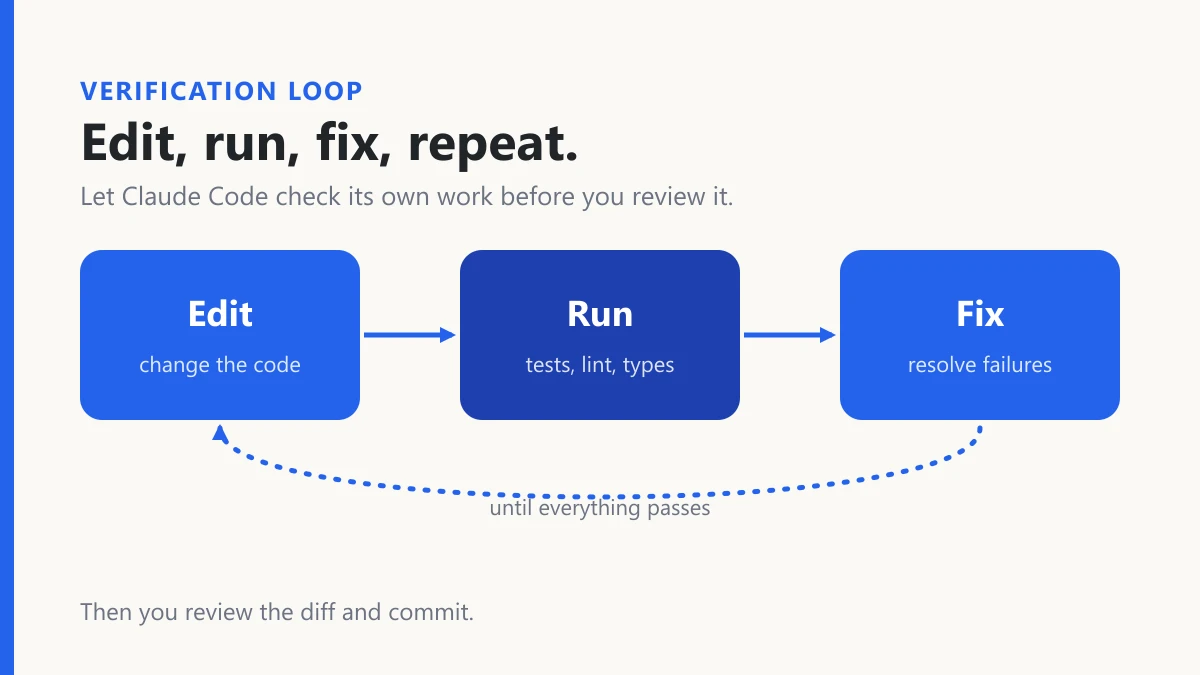
Tell Claude to run your test suite, linter, or type checker after each change, and to fix any failures it causes. If you have no tests, ask it to write a small script that exercises the feature. This turns Claude from a code generator into a loop that edits, runs, and corrects.
6. Keep changes reviewable with version control
Work in a git branch and commit often. Ask Claude to make small, focused commits with clear messages. Before accepting a large edit, read the diff. Claude is capable, but you remain responsible for what ships.
7. Control permissions deliberately
Claude Code asks for approval before running commands or editing files, depending on your settings. Allow routine, safe commands such as running tests so work moves faster. Keep approval required for anything destructive, like deleting files or pushing to a remote. Review your settings once and adjust them to match how much autonomy you are comfortable with.
8. Use custom commands for repeated workflows
If you run the same workflow often, such as "review this branch for security issues," save it as a custom slash command. A saved prompt is more consistent than retyping instructions each time.
9. Delegate focused subtasks
For broad work, such as searching a large codebase or investigating a bug across several modules, ask Claude to hand a focused subtask to a separate agent. Each agent works in its own context and reports back a summary, which keeps your main session clean.
10. Connect the tools you already use
Claude Code can connect to external tools through MCP (Model Context Protocol) servers, such as issue trackers, databases, or documentation sources. When Claude can read a ticket directly, you spend less time copying context into prompts and more time reviewing results.
Common mistakes to avoid
- Accepting large diffs without reading them. Skim, test, and understand changes before merging.
- Letting one session run for days. Start a fresh session for new tasks.
- Skipping tests. Without verification, errors can look correct until they fail in production.
- Writing prompts without constraints. Say what should not change, especially in shared code.
Final thoughts
Claude Code works best as a capable collaborator that needs clear direction, good project context, and a way to check its own work. Set up a CLAUDE.md file, scope your requests, plan larger changes, verify results, and keep commits small.
For the official reference, read the Claude Code documentation. For a related guide, see my post on 9 Claude prompting tips that get you better answers.