8 min readWooCommerceSecurityE-commerceCheckout
WooCommerce Tips and Security Checklist for Small Online Stores
Written by Nethma DissanayakeOnline Store Builder8 min read
Practical WooCommerce tips for a faster, easier checkout, plus a plain-language security checklist to keep your store and your customers' data safe.
A WooCommerce store has two jobs. It has to make buying easy, and it has to keep the people who buy safe. Most small store owners focus on the first job and only think about the second after something goes wrong. This guide covers both. The first half has nine practical WooCommerce tips for checkout, speed and trust. The second half is a plain-language security checklist you can work through in an afternoon, with no technical background needed.
Everything here comes from the official WooCommerce and WordPress documentation, Google's web performance guidance and the checkout research published by the Baymard Institute, explained in simple words. Where a setting lives in the dashboard, the menu path is given so you can find it yourself.

Photo: public domain (CC0), via Openverse and Rawpixel.
Part 1: Nine WooCommerce tips for easier selling
1. Let people check out without an account
Forcing shoppers to register before they can pay is one of the leading reasons for abandoned checkouts, according to the Baymard Institute's checkout research. WooCommerce makes guest checkout a single setting. Go to WooCommerce > Settings > Accounts & Privacy and tick Allow customers to place orders without an account. You can still offer an optional account after the order, so repeat customers get the convenience without a barrier on their first purchase.
2. Use the Cart and Checkout blocks
Stores created on recent versions of WooCommerce use the Cart and Checkout blocks by default (from version 8.3 for new stores). They are easier to edit in the block editor than the old shortcodes, and they give shoppers a cleaner, more consistent layout, including on phones. If your older store still uses shortcodes, open a test checkout on your phone and decide whether the upgrade is worth doing. Take a backup first and test on a staging copy.
3. Show the full cost early
Unexpected extra costs, such as shipping, tax and fees, are consistently named as the top reason shoppers abandon checkout. Do not let the total be a surprise on the last page. Show delivery prices on the product or cart page, and say clearly when delivery is free. In WooCommerce > Settings > Shipping, set up shipping zones so each area gets its own rates. The Free shipping method can also require a minimum order amount, which is a simple way to encourage a slightly larger basket.
4. Offer the payment methods your customers actually use
Cash on delivery is built into WooCommerce, so you do not need a plugin for it. Find it under WooCommerce > Settings > Payments. In Sri Lanka, many shoppers also trust a local card gateway such as PayHere, which has a WooCommerce plugin. Offering the methods people already know removes a big trust barrier. If you are new to taking cash on delivery, our guide to cash on delivery in Sri Lanka explains how to reduce failed deliveries.
5. Keep product images light
Oversized photos are one of the most common reasons product pages feel slow. Resize images to the size they are displayed, and use WebP, which WordPress supports. Lazy-load images below the fold, but not the main image at the top of the page, because that makes the page look slower. Google's Core Web Vitals give clear targets for a good experience: Largest Contentful Paint of 2.5 seconds or less, Interaction to Next Paint of 200 milliseconds or less, and Cumulative Layout Shift of 0.1 or less. You can test your store for free with PageSpeed Insights.
6. Exclude cart, checkout and account pages from caching
Caching makes a store faster, but the pages that are personal to each shopper must never be cached. The Cart, Checkout and My Account pages should be excluded in your caching plugin or host settings. Otherwise a customer can see a stale checkout, or even another person's cart. Most good caching plugins already do this for WooCommerce, but it is worth checking after you install or change one.
7. Recover abandoned carts
WooCommerce does not send abandoned cart reminders by itself. A plugin or an email tool can send a polite reminder to people who left at checkout. Keep the message helpful rather than pushy, link straight back to the cart and mention your delivery and returns information. Reminders work best when the product page itself is solid, so run through our product page checklist as well.
8. Build trust with verified reviews
Under WooCommerce > Settings > Products you can allow reviews and restrict them to verified buyers, with a "verified owner" label. Reviews from real buyers help new shoppers feel safe, and they also give you honest feedback about what to improve.
9. Watch your stock
In WooCommerce > Settings > Products > Inventory you can turn on stock management, set a low-stock threshold and receive email notices. Nothing damages trust faster than selling something you do not have. A simple weekly check of the products with the lowest stock avoids most problems.
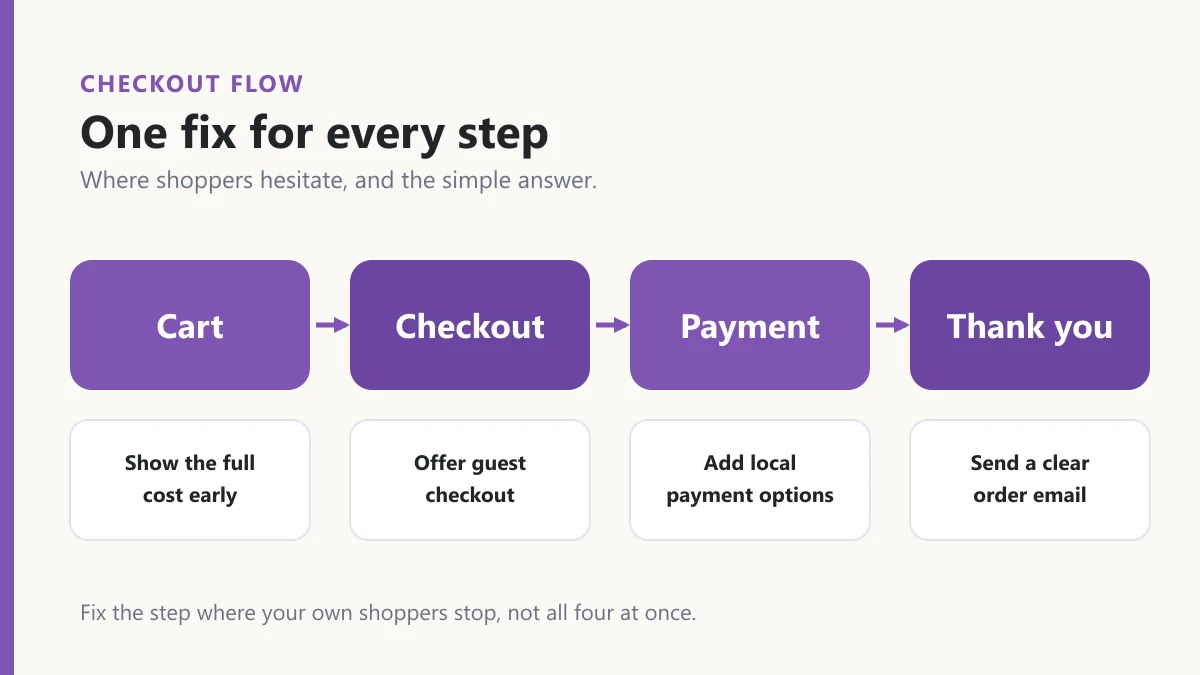
Fix the step where your own shoppers stop. You do not need to change all four at once.
Part 2: A WooCommerce security checklist
Hacked stores are rarely the target of clever, personal attacks. Most are found by automated tools that scan thousands of websites for outdated software and weak passwords. That is good news, because it means the basics stop most of the damage. Work through these seven habits.
Photo: public domain (CC0), via Openverse and Rawpixel.
1. Keep everything updated
Update WordPress, WooCommerce, your theme, your plugins and PHP. Updates often fix security problems that have already been made public, and attackers read the same release notes you do. The safe routine is simple: take a backup, update on a staging copy if you have one, check the shop and checkout, then update the live store. WooCommerce > Status shows the versions you are running and warns about problems.
2. Use strong logins and two-step verification
Use a long, unique password for every admin account, and store them in a password manager. WordPress does not include two-step login or limits on failed login attempts, so add them with a trusted plugin or your host's tools. Change any account named "admin" to something less obvious. If you ever used a password on several websites, change it now.
3. Back up daily and test the restore
A backup you have never restored is only a hope. Back up the database and the files every day, and keep a copy somewhere other than your web host, such as cloud storage. Once in a while, restore a backup to a test site to confirm it works. This single habit turns a disaster into an annoying afternoon.
4. Use HTTPS everywhere
Your store should load on HTTPS with the padlock showing on every page, not only at checkout. Most hosts offer free certificates. In Settings > General, make sure both the WordPress Address and the Site Address start with https://, and redirect any old http:// addresses.
5. Give people only the access they need
Not everyone who helps with your store needs to be an administrator. WooCommerce includes a Shop manager role that can manage products and orders without full control of the site. Give staff and freelancers that role, remove accounts when people leave, and keep the number of administrators to a minimum. You can also stop code being edited from the dashboard by adding define( 'DISALLOW_FILE_EDIT', true ); to your wp-config.php file.
6. Let a payment provider handle card details
Never ask customers to type a card number into a form you built, and never store card numbers yourself. Use a payment gateway that shows its own hosted payment page or secure fields. Because your store never handles the card data directly, your PCI DSS responsibilities become much smaller. It is also safer for your customers.
7. Remove what you do not use
Every plugin and theme is a possible way in. Deactivated plugins can still be exploited if they stay on the server, so delete them rather than just switching them off. Before installing a new plugin, check when it was last updated, how many stores use it and what the reviews say. Fewer plugins also means a faster store.
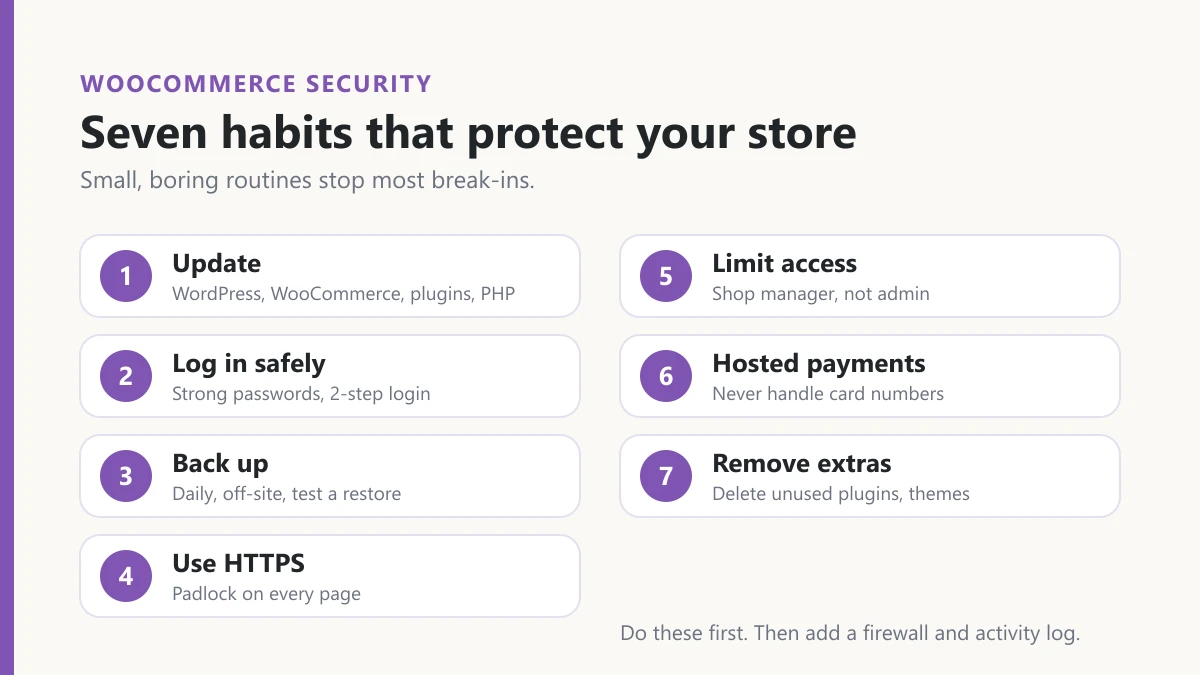
Do these seven first. Then consider a firewall and an activity log.
A simple monthly routine
| When | What to check |
|---|---|
| Every week | Low-stock products, new orders and failed payments, new admin users |
| Every month | Updates installed, a backup test, unused plugins removed, PageSpeed Insights score |
| Every quarter | Who has admin access, password manager review, a test purchase on your phone |
Common mistakes to avoid
- Installing a nulled or pirated theme or plugin. These are one of the most common ways malware gets onto stores. Buy from the official source.
- Skipping updates for months because "it works".
- Using the same password for your hosting, email and WordPress.
- Never testing the checkout. Place a real test order on your phone after every change.
- Treating security as a one-time job. It is a routine, like locking the shop door.
Frequently asked questions
Is WooCommerce secure?
WooCommerce itself is actively maintained and its developers publish security updates. Most problems come from outdated plugins, weak passwords and poor hosting, so how you look after the store matters more than the platform.
Do I need a security plugin?
A reputable security plugin or a firewall service adds protection such as malware scanning and blocking of suspicious traffic. It is a useful extra layer, but it does not replace updates, strong logins and backups.
How often should I back up my store?
Daily is a good habit for a store that takes orders every day, because it limits how much data you could lose. Keep at least one copy away from your hosting account.
Will these changes make my store faster?
Some will. Lighter images, fewer plugins and correct caching all help, and Google's targets give you a clear way to measure it. Our guide on how to speed up a Shopify store covers many ideas that apply to WooCommerce too.
Where to start
You do not need to do everything today. Turn on guest checkout, run your updates after a backup, and switch on two-step login. Those three steps already make your store easier to buy from and harder to break into. If you would like help with a WooCommerce store in Sri Lanka, from setup and speed to security and checkout, see my e-commerce developer service or get in touch.
This article is general guidance and does not replace professional security advice for your specific store. Settings and menu names can change between WooCommerce versions, so check the official documentation for your version.
Photo credits: the payment photo and the padlock photo are public domain (CC0) images from Rawpixel, found through Openverse. The diagrams are original artwork for this site.